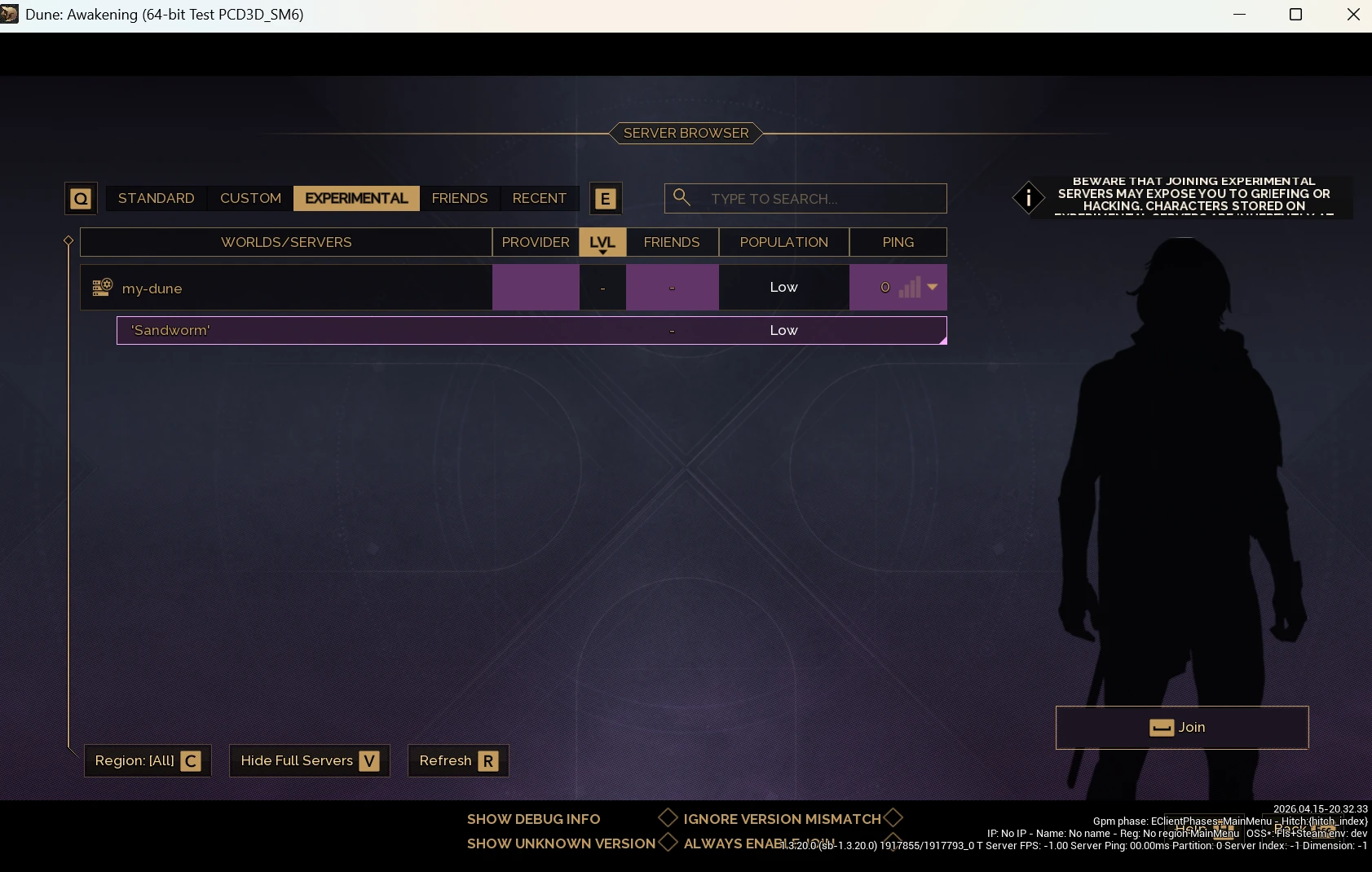
Self-Hosting a server allows you to host your own private world for yourself, your friends, or even foster a small community, where you control the its settings to have an Arrakis tweaked to your liking.
Technical Breakdown
World = Battlegroup
Sietch = Server
Self-hosting uses an Alpine Linux Virtual Machine hosted on a Windows host through HyperV. Inside the VM, we have a kubernetes cluster prepared. The initial setup will set the VM to use an external switch (bridge mode) so the VM will get an IP from the network’s router, and hosts will be able to port forward that if external access to the battlegroup is needed.
During setup, we download the latest server images, kubernetes resources and other configuration files from the latest game revision, and begin updating the cluster. The cluster is mounting the /home/dune/server/DuneSandbox/Saved folder on all game servers so configuration settings can persist after pod restart.
After the initial setup, the VM will be checking for updates, download them and apply them on the battlegroups, so they’re always compatible with the current Steam client.
Getting Started
After enabling hardware virtualization on their BIOS and turning the HyperV feature on, users will be able to download the Dune: Awakening Public Test Client Server product on Steam and begin the process.
Usage
On the Dune: Awakening Public Test Client Server Steam product, users will find a Virtual Machine (VM) along with two bat files. Running initial-setup.bat will start a commandline setup wizard that will take the user through installing the VM on their local machine. At the end of the process, they will get information on what ports they’d need to port forward on their router to allow external access to their battlegroup.
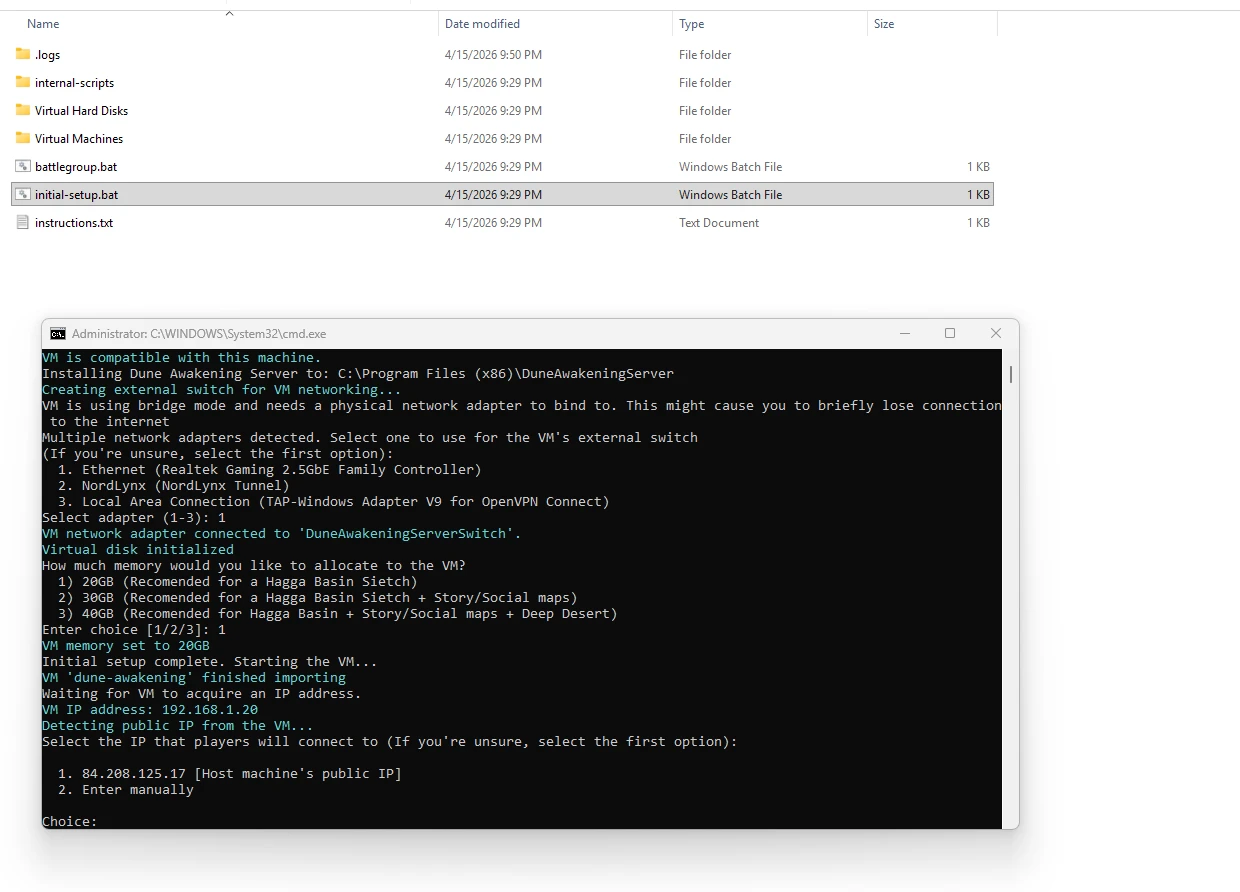
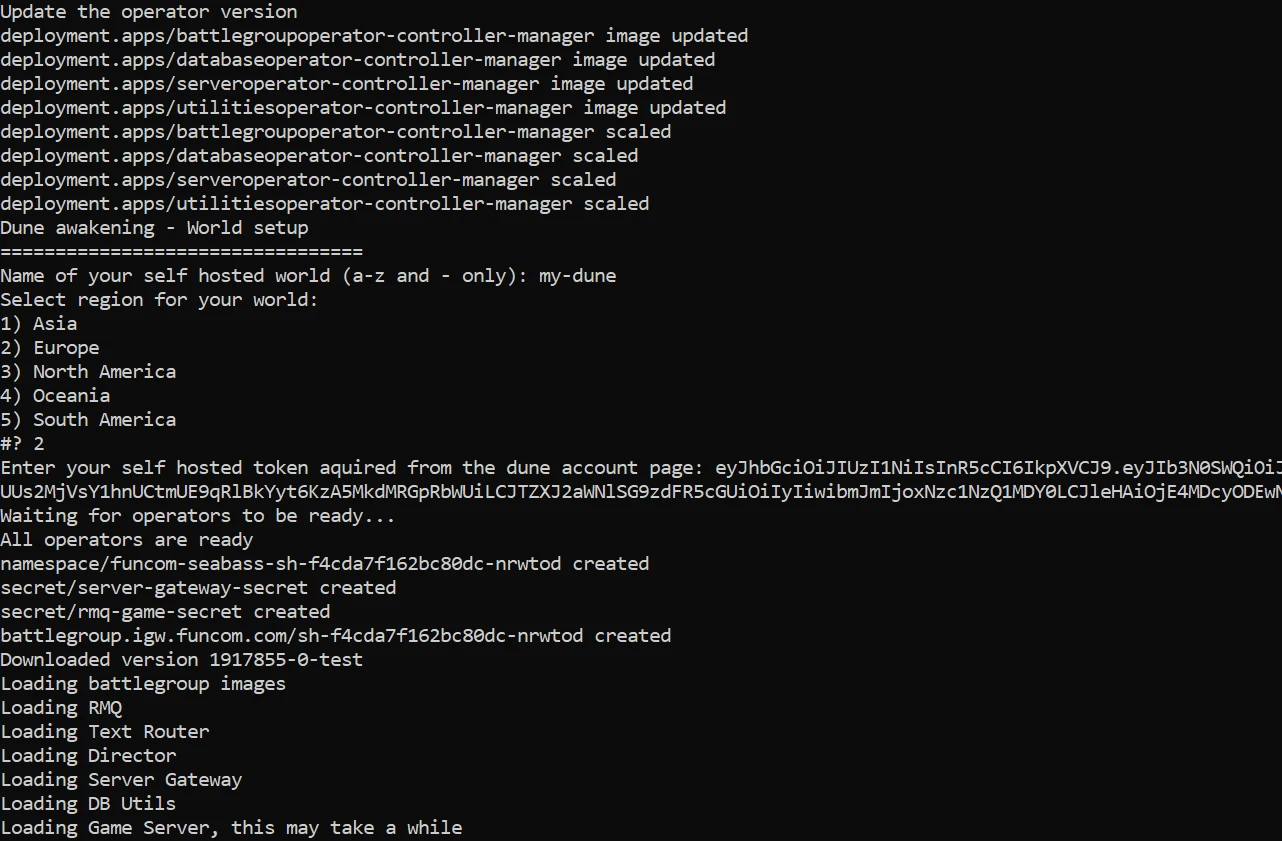
During the setup, users will be prompted to select options for their VM, and then for their battlegroup. They will also be prompted for the token they got from the account page.
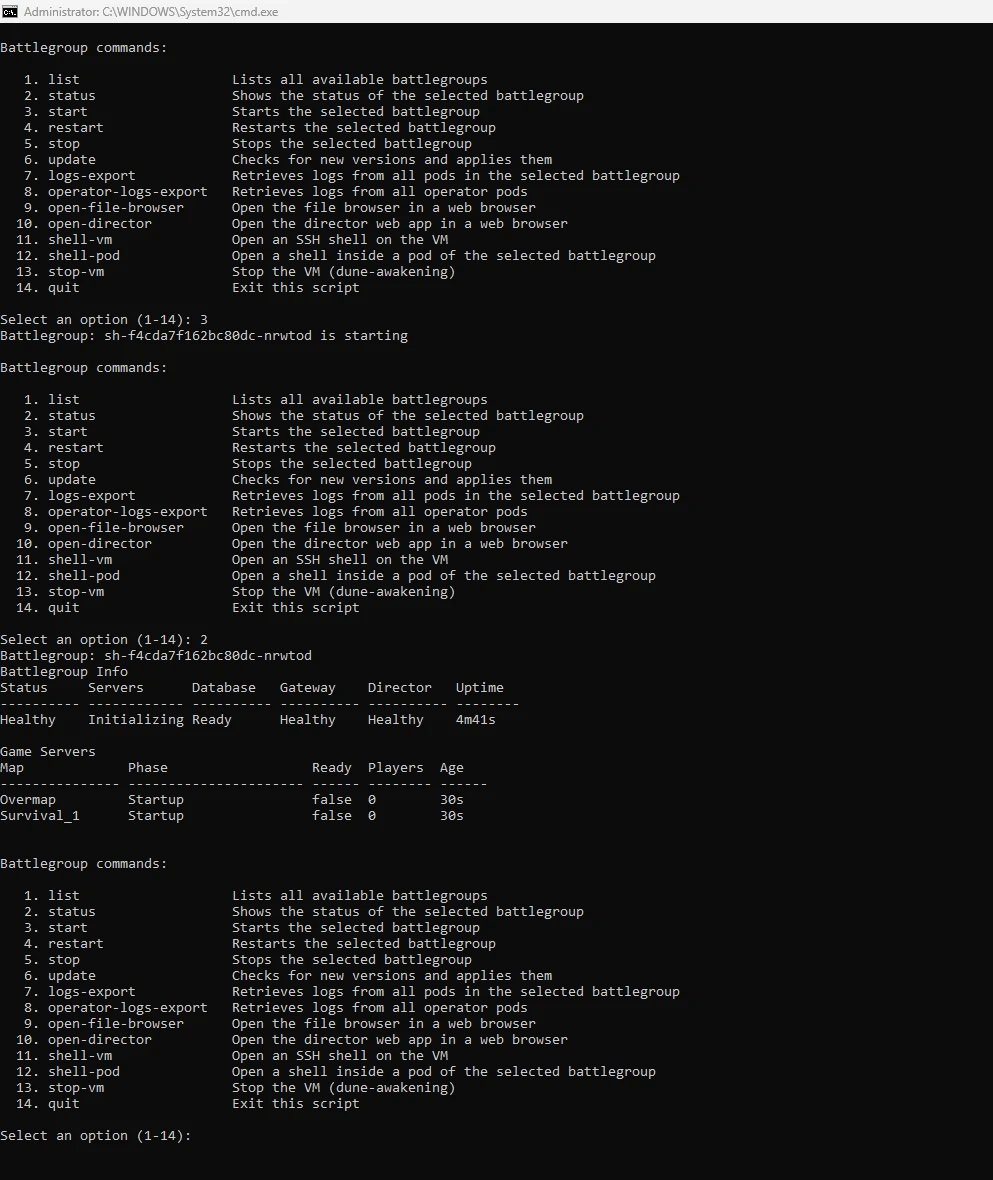
After the battlegroup setup is done, running battlegroup.bat will give the server host options for controlling and monitoring their battlegroup, along with various other functionalities like getting logs, accessing the file browser and shell access to the VM or any part of the battlegroup.
Changing World (Battlegroup) Settings
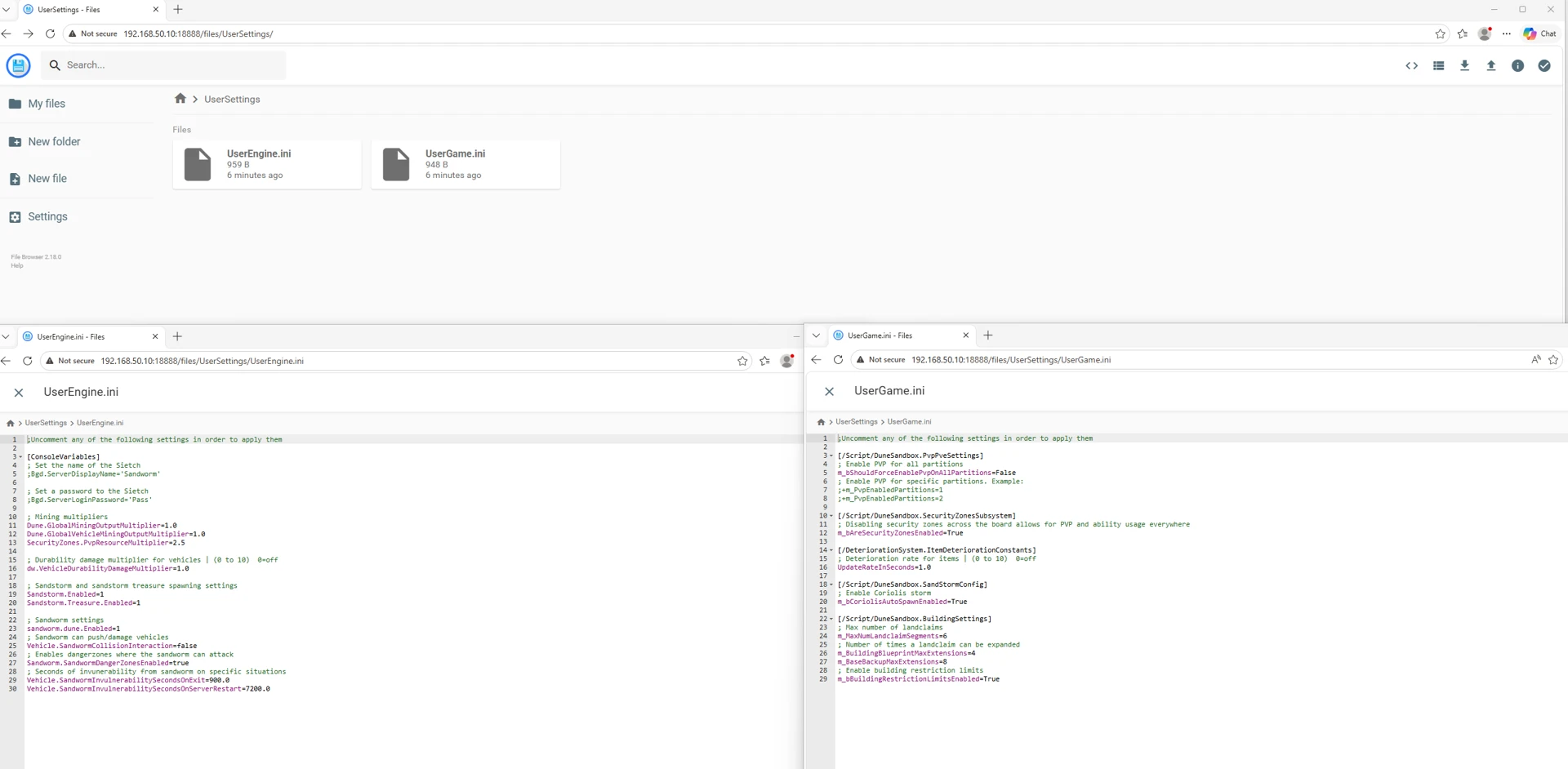
By opening the file browser (option 9 in battlegroup.bat), hosts will find a UserSettings folder with user ini config files that allow them to change the behavior of the servers in the battlegroup. Some options are documented for them to change, but they are able to create various other User ini files to manipulate any exposed setting. Changing settings there requires a battlegroup restart to take effect.
Afterwards, users will be able to find the server under the Experimental tab. Enjoy!